


Google Play Store Not Downloading Apps in Nigeria? Here's How to Fix It
Google Play Store not downloading apps on your Android phone? Try these practical fixes for stuck downloads, pending apps, slow downloads and failed installations in Nigeria.
Google Play Store Not Downloading Apps? 10 Fixes 2026
If your Google Play Store is stuck on “Pending,” refuses to download an app, or keeps showing “Something went wrong,” you're not alone. The problem can be caused by a poor internet connection, insufficient storage, corrupted Play Store data, incorrect date and time, or an issue with your Google account.
Here are the fixes worth trying before resetting your phone.
1. Check Your Internet Connection
Start with the simplest solution. Try opening YouTube or a website in Chrome. If pages are also loading slowly, your internet connection may be the problem.
If you're using mobile data:
Turn Airplane Mode on for about 10 seconds.
Turn it off and try again.
Switch between 4G/5G if available.
Try another network such as MTN, Airtel, Glo or 9mobile.
If you're connected to Wi-Fi, restart your router and reconnect your phone.
Tip: Large apps and games can take a long time to download on a weak connection.
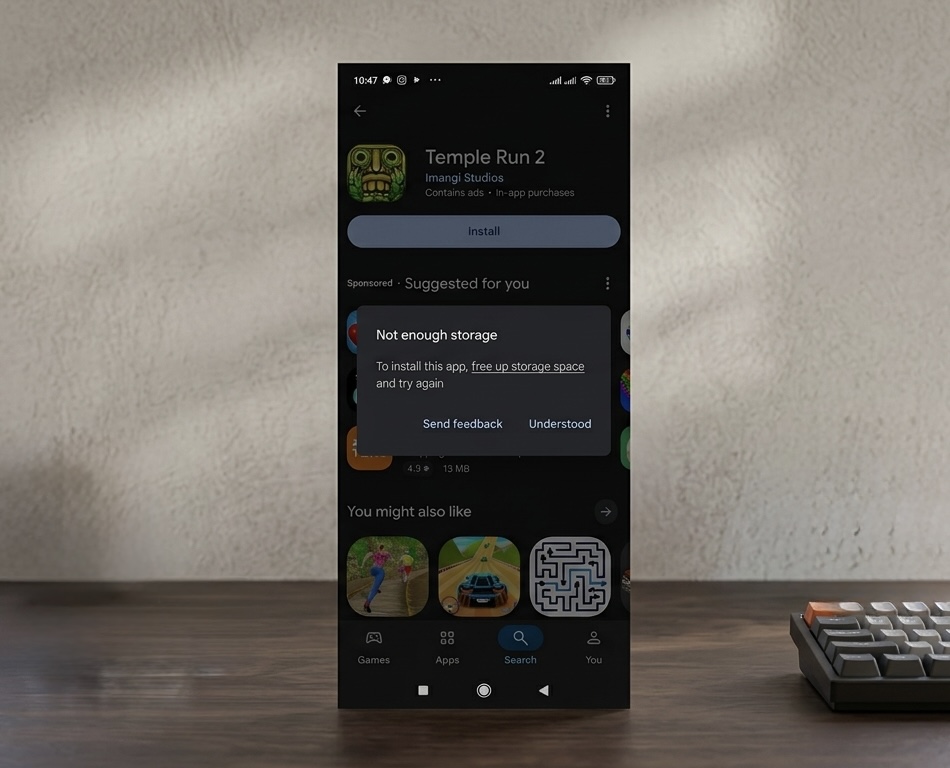
2. Check Your Phone Storage
Android may refuse to install an application if your phone is almost full.
Go to:
Settings → Storage
Check how much free space remains.
If your storage is nearly full, remove:
Unused apps
Large videos
Duplicate photos
Old WhatsApp media
Downloaded movies and files
Try to keep at least a few gigabytes of free space, particularly when installing large games.
3. Cancel the Download and Try Again
Sometimes a download simply gets stuck. Open the Play Store and cancel the pending installation.
Then search for the application again and tap Install.
If several applications are waiting in the download queue, check whether another app is currently downloading or updating.
4. Clear Google Play Store Cache
A corrupted cache can cause strange Play Store behaviour.
Go to:
Settings → Apps → Google Play Store → Storage & cache
Then tap:
Clear cache
Open the Play Store again and try downloading the application. You normally don't need to clear all app data immediately. Start with the cache.
5. Restart Your Android Phone
It sounds basic, but restarting can resolve temporary problems with:
Network connections
Background processes
Google Play services
Memory
Pending downloads
Restart your phone and try the download again.
6. Check Automatic Date and Time
Incorrect time settings can interfere with Google's services.
Go to your phone's:
Settings → Date & time
Enable:
Automatic date & time
Also enable the automatic time-zone option if your phone provides it. Then reopen the Play Store.
7. Check Google Play Services
The Play Store depends heavily on Google Play Services.
Go to:
Settings → Apps → Google Play Services
Check whether an update is available. You can also clear its cache if your Android version provides that option. Avoid deleting data or making advanced changes unless simpler solutions have failed.
8. Check Download Preferences
The Play Store may be configured to download applications only over Wi-Fi.
Open:
Google Play Store → Profile picture → Settings → Network preferences → App download preference
If you're using MTN, Airtel, Glo or another mobile network and want to download over cellular data, choose the appropriate mobile-data option. Be careful with large applications because they can consume a significant amount of your data bundle.
9. Update the Play Store
An outdated Play Store version can sometimes cause problems.
Open:
Google Play Store → Profile picture → Settings → About
Look for the option to Update Play Store.
If an update is available, install it and restart the phone.
10. Check Whether the App Is Available for Your Phone
Not every Android application works on every device.
An app may not download because:
Your Android version is too old.
Your phone isn't compatible.
The application isn't available in your country.
The developer has restricted certain devices.
The app has been removed from Google Play.
If the Play Store specifically says “This app won't work for your device,” clearing the cache won't solve the underlying compatibility issue.
If Apps Are Stuck on “Pending”
If every application stays on Pending, try these steps in order:
Check your internet connection.
Cancel other pending downloads.
Restart your phone.
Check available storage.
Clear Google Play Store cache.
Check Google Play Services.
Confirm automatic date and time.
Restart the download.
This usually helps identify whether the problem is your phone, connection or Play Store.
What If Play Store Works on Wi-Fi but Not Mobile Data?
This is particularly relevant if you're using mobile networks in Nigeria. Check whether your phone has restricted mobile-data access for the Play Store.
Go to:
Settings → Apps → Google Play Store → Mobile data
Make sure mobile-data access is enabled. Also check your data balance and whether your network connection is actually providing usable internet.
If other applications also cannot access the internet through mobile data, the problem is more likely to be your network or phone's mobile-data configuration rather than Google Play Store.
Final Verdict
A Google Play Store download problem doesn't necessarily mean your Android phone is faulty. In most cases, start with the basics: check your internet connection, free up storage, restart the phone and clear the Play Store cache.
If the problem affects only one application, check its compatibility and availability. If every application refuses to download, investigate your connection, Play Store and Google Play Services.
For Nigerian users, it's also worth testing Wi-Fi versus mobile data. That simple comparison can quickly tell you whether you're dealing with a Play Store problem or a network problem.
Related Articles
WhatsApp Keeps Freezing on iPhone? Here's How to Fix It 2026
Is WhatsApp hanging, freezing, or crashing on your iPhone? Learn the most effective ways to fix slow WhatsApp performance, especially on 64GB and 128GB iPhones running low on storage.
Windows Laptop Takes Too Long to Boot and Runs Slowly? Here’s How to Fix It
Is your Windows laptop taking forever to start or running slowly? Learn the common causes and practical ways to speed up your Windows 10 or Windows 11 PC.
Windows Search Too Slow? This Free Tool Can Find Almost Any File in Seconds
Everything Windows, VoidTools Everything, Windows Search, Windows 11 tips, Windows 10 tips, file search, PC tips, productivity tools, free Windows software
MTN FibreX vs Airtel 5G ODU: Which Home Internet Is Better in Nigeria?
MTN FibreX vs Airtel 5G ODU: compare Nigerian prices, speeds, unlimited data, installation, coverage and performance to choose the best home internet.
New AirPods Could Launch Next Month: Should Nigerians Wait Before Buying?
LuliFiber vs WiFiber: Cheapest Unlimited Internet Plans in Nigeria 2026
LuliFiber vs WiFiber in Nigeria: compare unlimited internet prices, speeds, coverage, installation and plans to find the cheapest fibre broadband for your home.

Cheapest Unlimited Internet in Nigeria 2026: Best Plans Compared
Looking for cheap unlimited internet in Nigeria? Compare MTN, Airtel and local ISPs by price, speed, coverage and data limits in 2026.
Comments (0)
Leave a comment
Comments cannot be edited or deleted after posting. Please review your comment before submitting.
No comments yet. Be the first to share your thoughts!