


How to Improve Your iPhone Privacy in Nigeria: Hide Apps, Photos & More
Learn how to protect your iPhone privacy in Nigeria by hiding apps, locking photos, securing WhatsApp and banking apps, and enabling Stolen Device Protection.

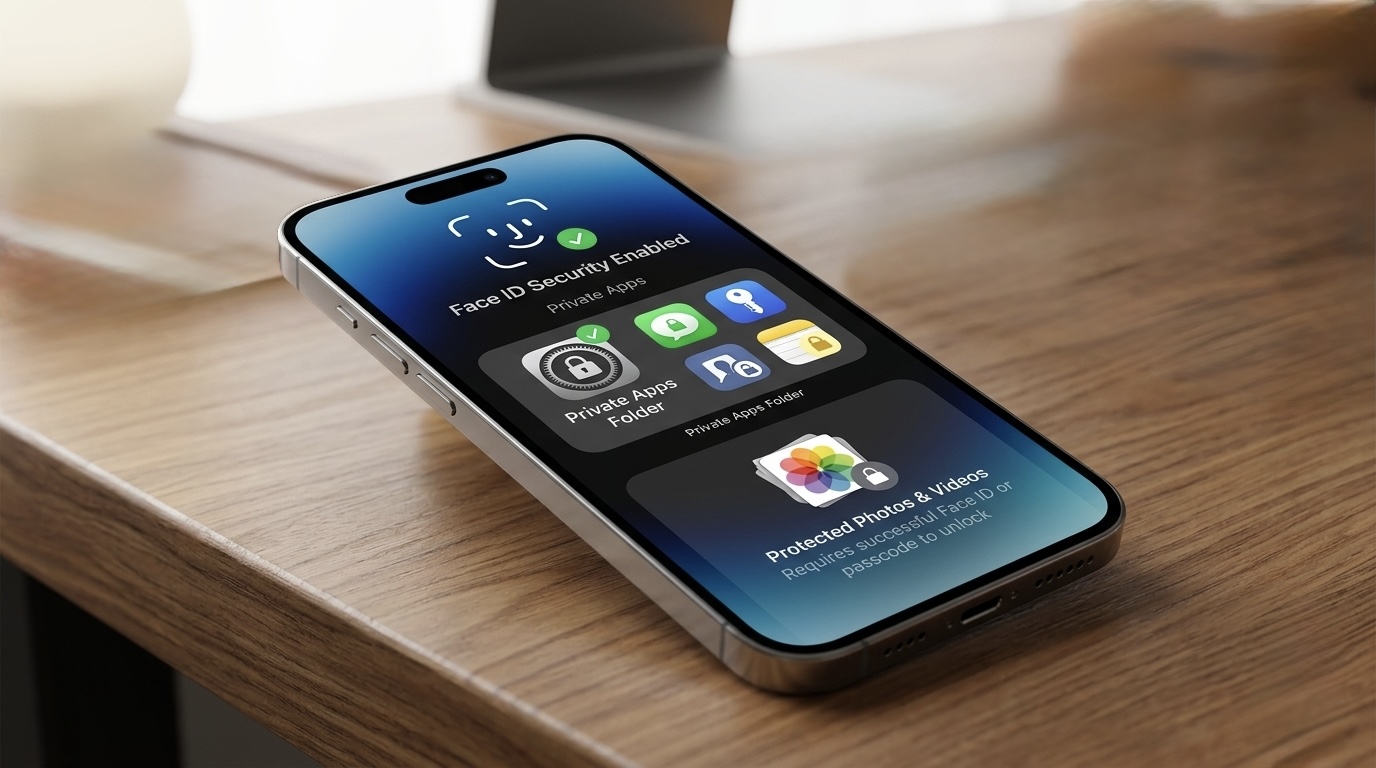
Your iPhone Contains More Private Information Than You Think
Your iPhone probably contains your banking apps, WhatsApp conversations, photos, emails, social media accounts, passwords and personal documents. That makes losing your phone or simply handing it to someone more serious than it may seem.
For users in Nigeria and across Africa, where smartphones are increasingly used for mobile banking, payments, work and communication, protecting this information should be a priority. Fortunately, you don't need a third-party security app to improve your iPhone's privacy. Apple already provides several useful tools for locking apps, hiding applications, protecting photos, securing sensitive information and protecting your device if it is stolen.
Here are some of the most useful settings you should enable.
1. Lock Your Most Important Apps With Face ID
One of the easiest privacy improvements is to lock individual apps. On supported versions of iOS, you can press and hold an app icon and select Require Face ID.
The app will then require Face ID, Touch ID or your iPhone passcode before it can be opened. Apple also limits some information from appearing elsewhere when an app is locked, including certain notification previews, Search and Siri suggestions.
How to lock an app
Go to your Home Screen.
Find the app you want to protect.
Press and hold the app icon.
Tap Require Face ID.
Authenticate with Face ID.
This is particularly useful for apps containing sensitive conversations, documents or personal information.
2. Hide Apps You Don't Want People to See
Sometimes locking an app isn't enough. If you don't even want an app sitting visibly on your Home Screen, iPhone allows you to hide downloaded apps.
Press and hold the app, select Require Face ID, then choose Hide and Require Face ID and authenticate. The app disappears from the Home Screen and moves into the Hidden folder in the App Library.
Good apps to consider hiding
Depending on your situation, you might hide:
Private messaging apps
Dating apps
Personal finance apps
Investment apps
Work applications
Private social media accounts
Apps containing sensitive documents
Keep in mind that hiding an app doesn't make it completely invisible. Apple says its name can still appear in places such as Settings, Screen Time, Battery Usage and App Store purchase history.
3. Hide Private Photos and Videos
Your photo gallery can contain information you don't want other people seeing. Fortunately, Apple's Photos app includes a Hidden collection.
To hide a photo or video:
Open Photos.
Select the photo or video.
Tap the More button.
Select Hide.
Confirm.
The item is moved out of the normal Photos library and into the Hidden collection. The Hidden collection is protected by Face ID, Touch ID or your passcode by default on current iOS versions.
You can hide the Hidden album completely
For even more privacy:
Settings → Apps → Photos → Show Hidden Album → Off
This means the Hidden collection won't even appear normally inside Photos.
4. Don't Forget the Recently Deleted Album
Hiding photos isn't the only thing you should think about. When you delete a photograph, it can remain inside Recently Deleted. Someone with access to your unlocked phone could potentially browse there.
Fortunately, the Recently Deleted collection is also protected by Face ID, Touch ID or your passcode by default. So if you have sensitive images, don't assume deleting them immediately makes them accessible to nobody.
5. Protect Snapchat's Private Photos
If you use Snapchat, there is another useful option called My Eyes Only. It allows you to move private Snaps and Stories into a protected area requiring a separate passcode.
To set it up:
Open Snapchat.
Swipe up from the camera screen to open Memories.
Press and hold a Snap.
Select Hide Snap (My Eyes Only).
Choose Quick Setup.
Create a passcode.
You can also use an alphanumeric passphrase instead of a four-digit code.
Important warning
Don't forget this passcode.
Snapchat says it cannot recover your My Eyes Only content if you forget the passcode and reset it. Resetting the passcode can result in the existing protected Snaps being deleted.
6. Protect Your Banking and Financial Apps
This is particularly important for Nigerian smartphone users.
Your phone may contain apps connected to:
Bank accounts
Mobile wallets
Investment accounts
Payment services
Cryptocurrency wallets
Debit cards
Financial documents
If a particular banking or financial application supports Face ID, enable it inside the application's security settings. Many financial apps provide their own biometric authentication, so check the app's settings rather than assuming the iPhone's general lock automatically protects every financial transaction. You should also use Apple's built-in app locking where available.
A good rule
Don't rely on only one layer of security.
Use:
iPhone passcode + Face ID + app authentication + banking transaction PIN/OTP where applicable.
7. Turn On Stolen Device Protection
This is one of the most important settings you can enable. Apple's Stolen Device Protection is designed to make it harder for someone who has stolen your iPhone and knows your passcode to access or change sensitive information.
When the device is away from familiar locations, certain sensitive actions require Face ID or Touch ID without a passcode fallback. Some security changes can also trigger a security delay.
How to enable it
Go to:
Settings → Face ID & Passcode → Stolen Device Protection → Turn On
Apple requires features including a device passcode, Face ID or Touch ID, two-factor authentication and Find My for this protection. For people who frequently carry their phones around Lagos, Abuja, Port Harcourt or other busy cities, this is a setting worth having enabled.
8. Lock Sensitive Notes
Your Notes app may contain information that shouldn't be sitting unprotected.
For example:
Password hints
Personal information
Financial details
Account information
Private documents
Recovery information
Apple allows individual notes to be locked using your device passcode, a custom password, Face ID or Touch ID.
How to lock a note
Open Notes.
Open the note.
Tap the More button.
Select Lock.
Choose your preferred authentication method.
Avoid storing actual banking PINs, card PINs or passwords in plain text even inside a locked note.
9. Hide Sensitive Notification Previews
You can have excellent Face ID security and still accidentally reveal private information through your notifications.
Imagine receiving a WhatsApp message containing:
"Your OTP is 483921."
If message previews are displayed on your Lock Screen, someone nearby could potentially see it.
Go to:
Settings → Notifications
Then select the apps you want to control and adjust how notifications appear.
You can also change the overall Lock Screen notification display between Count, Stack and List.
For banking and messaging apps, consider limiting what appears on the Lock Screen.
10. Use a Strong iPhone Passcode
Face ID is convenient, but your passcode remains extremely important.
Avoid obvious combinations such as:
123456
000000
Your birthday
Your phone number
Your ATM PIN
A repeated number
If possible, use a custom alphanumeric passcode or a strong numeric code that isn't used anywhere else. And never give your iPhone passcode to someone simply because they ask for it.
11. Don't Use Your Banking PIN as Your iPhone Passcode
This deserves its own warning. Your iPhone passcode and ATM/banking PIN should never be the same. If someone learns one, you don't want them automatically knowing the other.
Think of your security like separate doors:
Phone → Apps → Banking → Transactions
Each layer should have its own protection.
12. Be Careful When Someone Asks to "Borrow Your Phone"
You don't necessarily need to hand someone your unlocked phone. If you need to let somebody use one particular application, Apple's Guided Access can temporarily restrict the iPhone to a single app.
This can be useful when:
Giving your phone to a child
Showing someone a photo
Letting someone make a call
Allowing someone to use a particular application
You can configure Guided Access under:
Settings → Accessibility → Guided Access
What About WhatsApp?
WhatsApp also provides its own privacy and security features. If available on your device, enable Face ID/app lock for WhatsApp so someone who gets access to your unlocked phone cannot simply open your conversations.
You should also be careful with:
Verification codes
Suspicious WhatsApp links
Unknown calls claiming to be from your bank
Fake customer-service accounts
Requests for your WhatsApp registration code
Your bank, Apple or WhatsApp should not require you to reveal confidential authentication codes to another person.
What If Your iPhone Gets Stolen?
Act quickly. Use Find My to locate or mark the device as lost, and contact your network provider and relevant financial institutions if necessary. Apple says Lost Mode locks the device and suspends Apple Pay cards and passes.
If you believe your phone has been stolen, don't wait days before securing your accounts. Change important passwords and contact your bank if you believe financial information could have been exposed.
Final Thoughts
Your iPhone is no longer just a phone. For many Nigerians, it is also a bank, wallet, camera, office, social network, identity document holder and communication device. That makes privacy more important than ever.
The good news is that many of the strongest protections don't require another app or subscription. Face ID, app locking, Hidden Photos, Stolen Device Protection, notification controls and two-factor authentication can significantly reduce the amount of information someone can access if they get hold of your phone.
If you haven't configured these settings yet, spending a few minutes doing it now could save you a much bigger problem later.
Related Articles
WhatsApp Keeps Freezing on iPhone? Here's How to Fix It 2026
Is WhatsApp hanging, freezing, or crashing on your iPhone? Learn the most effective ways to fix slow WhatsApp performance, especially on 64GB and 128GB iPhones running low on storage.
Telegram Removed from Apple's App Store Worldwide? Here's What We Know 2026
Telegram briefly disappeared from Apple's App Store worldwide before being restored. Here's why it happened, what Apple and Telegram said, and what it means for users in Africa.
Upgrading from iPhone XR to iPhone 17 Pro Max? How to Spot a Fake Before You Pay
Upgrading from iPhone XR to iPhone 17 Pro Max? Learn how to spot a fake iPhone 17 Pro Max, check the model number, display, cameras, Face ID, USB-C and other red flags before buying.
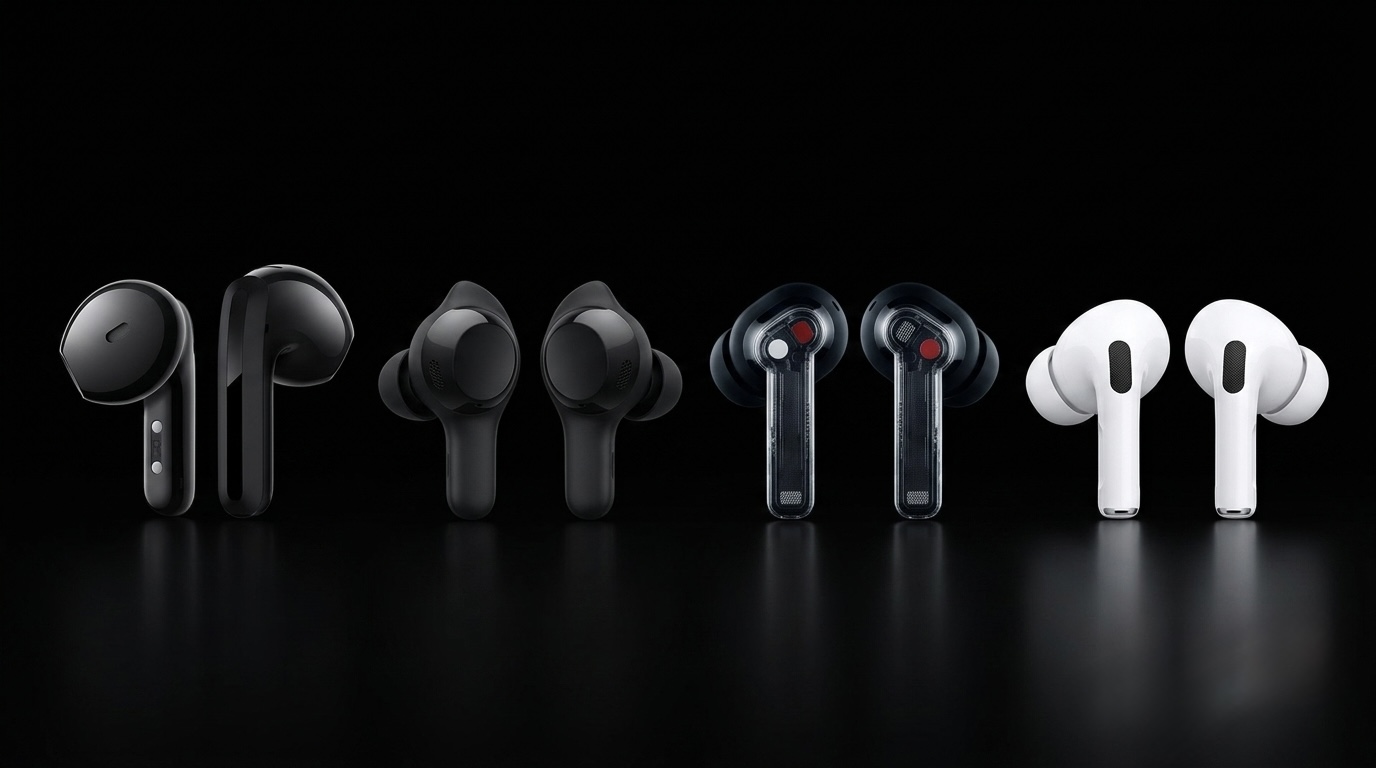
AirPods vs Wireless Earbuds in 2026: Which One Should You Buy in Nigeria?
Thinking of buying AirPods or another wireless earbud? Compare Apple AirPods with Samsung Galaxy Buds, Nothing Ear, Redmi Buds and more. Find out which offers the best value for Nigerians in 2026.
Apple's iCloud Private Relay May Not Fully Hide Your IP Address, Researchers Warn
Security researchers say Apple's iCloud Private Relay may expose a user's real IP address under certain conditions. Here's what the issue means, who's affected, and whether you should be worried.
New AirPods Could Launch Next Month: Should Nigerians Wait Before Buying?
iCloud Storage vs iPhone Storage: Why Paying for iCloud Doesn't Automatically Free Your Phone
Confused about iCloud and iPhone storage? Learn the difference, why buying iCloud doesn't automatically free your iPhone, and how to use Optimize iPhone Storage correctly.
Comments (0)
Leave a comment
Comments cannot be edited or deleted after posting. Please review your comment before submitting.
No comments yet. Be the first to share your thoughts!