
How to Save Mobile Data on Android and iPhone in Nigeria: MTN, Airtel, Glo & 9mobile Guide
Is your MTN, Airtel, Glo or 9mobile data finishing too quickly? Learn how to reduce mobile data usage on Android and iPhone with simple settings and practical tips.
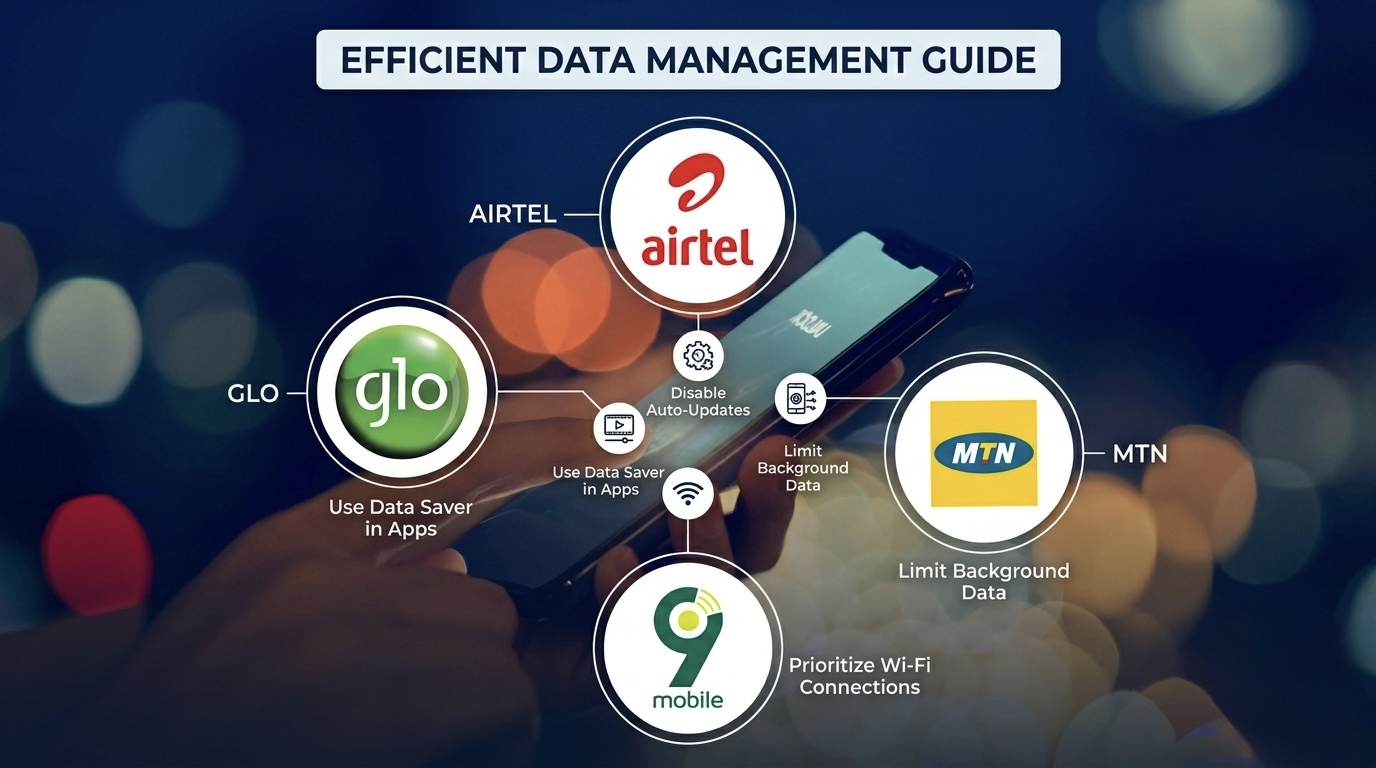
Is Your Phone Finishing Data Too Quickly? Here's How to Make Your Bundle Last Longer
Buying a data bundle in Nigeria can sometimes feel like pouring water into a leaking bucket. You buy 5GB, 10GB or even 20GB, use your phone normally for a few days, and suddenly receive the dreaded message:
Your data bundle is almost exhausted.
But mobile data doesn't simply disappear. Video streaming, WhatsApp downloads, Instagram, TikTok, cloud backups, automatic updates and apps running in the background can quietly consume gigabytes.
Whether you use MTN, Airtel, Glo or 9mobile, these settings can help you significantly reduce unnecessary data consumption.
1. Turn on Data Saver on Android
If you're using an Android phone, start with the built-in Data Saver feature.
Depending on your phone brand, go to:
Settings → Network & Internet → Data Saver
On Samsung and some other Android phones, the location may be slightly different:
Settings → Connections → Data Usage → Data Saver
When enabled, Android restricts background data usage by many apps. This is particularly useful for apps you rarely open but that continue synchronising in the background.
2. Turn on Low Data Mode on iPhone
iPhone users have a similar feature called Low Data Mode.
Go to:
Settings → Mobile Service/Cellular → Mobile Data Options → Low Data Mode
Depending on your iOS version, the wording can vary slightly. Low Data Mode reduces background network activity and can help limit automatic downloads and synchronisation.
Airtel also recommends Low Data Mode as one of the ways iPhone users can reduce mobile-data consumption.
3. Stop WhatsApp From Automatically Downloading Videos
WhatsApp can become one of the biggest data consumers on your phone. Imagine being added to several active groups where people constantly send:
Videos
Photos
GIFs
Documents
Voice messages
You may download hundreds of megabytes without intentionally watching anything.
On WhatsApp:
Go to:
Settings → Storage and Data → Media Auto-Download
Set photos, audio, videos and documents to Wi-Fi only or disable automatic downloads.
You can also enable Use Less Data for Calls. Airtel specifically recommends WhatsApp's data-saving options for reducing mobile-data consumption.
4. Stop Instagram, TikTok and Facebook From Preloading Videos
Video is one of the fastest ways to destroy a mobile-data bundle. You may spend only 30 minutes scrolling, but dozens of videos can be loaded automatically.
Where available, enable:
Data Saver
or
Use Less Mobile Data
Also consider reducing video quality when using mobile data.
For example, don't automatically stream every video in the highest available quality when you're using a limited bundle.
5. Stop Apps From Updating Automatically With Mobile Data
Your phone may download large updates without you realising it. A single game or social-media update can be hundreds of megabytes.
Android
Open:
Google Play Store → Profile → Settings → Network Preferences → Auto-update apps
Choose:
Over Wi-Fi only
iPhone
Go to:
Settings → App Store
Review Cellular Data and automatic download/update settings.
The idea is simple:
Use Wi-Fi for large app updates whenever possible.
6. Check Which Apps Are Eating Your Data
Instead of guessing, check your phone's data usage.
Android
Go to:
Settings → Network/Connections → Data Usage
You'll usually see a breakdown showing which applications consumed the most data.
iPhone
Go to:
Settings → Cellular/Mobile Service
Scroll down to see how much data individual apps have consumed. You may discover that an application you barely use is consuming hundreds of megabytes. If an app is unnecessary, disable its access to mobile data.
7. Stop Google Photos and iCloud From Using Mobile Data
Cloud backups can quietly consume large amounts of data.
For example, if you've taken hundreds of photos or videos, your phone could attempt to upload them to the cloud.
iPhone
Check:
Settings → [Your Name] → iCloud
Review which apps and services are synchronising. You should also check your Photos settings and make sure large uploads aren't unnecessarily using mobile data.
Android
If you use Google Photos, review its backup settings and ensure mobile-data usage isn't enabled unnecessarily.
Wi-Fi is your friend when backing up large photo and video libraries.
8. Download Movies, Music and Maps Over Wi-Fi
Streaming is convenient, but it can consume enormous amounts of data. Instead of repeatedly streaming:
YouTube videos
Netflix movies
Spotify music
Podcasts
Google Maps data
download what you need while connected to Wi-Fi, where the service supports offline downloads. For navigation, MTN also recommends downloading maps for offline use to reduce mobile-data consumption.
9. Be Careful With Your Phone's Hotspot
Your laptop can consume your entire phone bundle surprisingly quickly. Windows updates, browser downloads, cloud synchronisation and software updates can happen in the background. If you connect your laptop to your phone's hotspot, remember that:
Your laptop doesn't know you're using an expensive mobile-data bundle. It may behave as if you're connected to unlimited home broadband.
Before using hotspot, consider:
Pausing Windows updates
Closing cloud-sync applications
Avoiding large downloads
Disconnecting the hotspot when finished
10. MTN Users: Monitor Your Data Usage
MTN provides tools for tracking data usage.
The myMTN NG app allows customers to view usage history, and MTN says data usage history can be viewed for the previous three days. MTN also warns that common causes of rapid data depletion include video streaming, large downloads, background updates and hotspot sharing.
MTN currently offers different daily, weekly and monthly data bundles, so check the current plan details before purchasing rather than relying on old codes or social-media "secret data" tricks.
11. Airtel Users: Use the Built-In Data Saving Options
Airtel's own guidance recommends using data-saving options available inside popular applications.
For example:
Instagram: Enable reduced cellular-data usage.
Facebook: Reduce video quality and set autoplay appropriately.
WhatsApp: Enable reduced data usage for calls and control automatic media downloads.
iPhone: Enable Low Data Mode.
These small changes can make a noticeable difference over an entire month.
12. Glo Users: Don't Ignore Data Limits
Glo users can also control mobile-data consumption directly through their phones. On Android, you can configure a data warning and usage limit so your phone alerts you before you reach your chosen threshold.
For example, if you have a 10GB bundle, you could configure your phone to warn you when usage reaches 7GB or 8GB. This gives you time to reduce video streaming and other heavy activities before the bundle disappears.
13. 9mobile Users: Track Your Usage Too
The same principles apply to 9mobile users. Your network provider doesn't control every megabyte consumed by your phone. Apps can continue using mobile data independently. Therefore, the most effective strategy is to combine:
Network balance checking + phone data monitoring + app restrictions.
Don't wait until your network sends an "almost exhausted" message before checking what's happening.
Don't Blame MTN, Airtel, Glo or 9mobile Immediately
When your data finishes quickly, it's tempting to assume the network is deducting data incorrectly. Sometimes that can happen and should be investigated, but there are many legitimate reasons for rapid depletion. MTN itself recommends checking your device's data-usage statistics when consumption appears unexpectedly high.
Before contacting customer care, check:
Settings → Data Usage
Then look at the applications consuming the most data. You might be surprised by what you find.
Final Thoughts
You don't necessarily need to buy a bigger data bundle to solve your data problem. In many cases, changing a few settings can make your existing bundle last considerably longer. Whether you're on MTN, Airtel, Glo or 9mobile, the formula is essentially the same:
Control background data → reduce video quality → stop automatic downloads → use Wi-Fi for updates and backups → monitor your usage.
And if your data is disappearing unusually fast, don't guess.
Check which app is actually consuming it first.
That one step can save you thousands of naira every month.
Related Articles
Hidden Glo Data Trick in 2026: Get 10GB for Just ₦2,000 That Most Nigerians Don't Know About
Discover Glo's hidden data plans available only in the Glo Café app. Learn how to get 10GB for ₦2,000, compare it with MTN and Airtel, and find out why it's one of Nigeria's best-value data bundles.
How to Change Your iPhone or Android GPS Location for Free 2026 Guide
Want to spoof your GPS location on iPhone or Android? Learn how to change your phone's location for free using 3uTools, why it may stop working on newer iOS versions, and when a paid tool like MocPOGO may be worth considering.
Starlink Nigeria Installation Guide 2026: Costs, Setup & Used Starlink Prices
Learn how to install Starlink in Nigeria, activation steps, monthly subscription costs, installation tips, and whether buying a fairly used Starlink kit for ₦200,000–₦400,000 is worth it.
MTN FibreX in Nigeria: The Complete 2026 Guide Free Installation, Coverage, Pricing & Speed
Thinking of installing MTN FibreX? Learn about free installation, monthly plans, coverage, speeds, eligibility, and how to identify FibreX poles in your neighbourhood.
Samsung Galaxy S27 Ultra Camera: First Look, Leaks & What We Know
Samsung Galaxy S27 Ultra camera leaks are already creating excitement. Here's what the latest reports suggest about its camera design, sensors, zoom and possible upgrades.
MacBook Screen Goes Black When You Open It Wide? It Might Not Be the Motherboard (Flexgate Explained)
If your MacBook screen works only at certain angles or goes black when you open the lid fully, you may be dealing with the Flexgate display issue—not a motherboard fault. Here's what you need to know before paying for repairs.
Xiaomi Redmi Note 17 5G Review: Price, Specs and Is It Worth Buying in Nigeria?
Xiaomi Redmi Note 17 5G review with Nigerian price, 7-inch 120Hz OLED display, Snapdragon 4 Gen 4, 8,000mAh battery, 50MP camera and 5G features.
Comments (0)
Leave a comment
Comments cannot be edited or deleted after posting. Please review your comment before submitting.
No comments yet. Be the first to share your thoughts!