
iCloud Storage vs iPhone Storage: Why Paying for iCloud Doesn't Automatically Free Your Phone
Confused about iCloud and iPhone storage? Learn the difference, why buying iCloud doesn't automatically free your iPhone, and how to use Optimize iPhone Storage correctly.
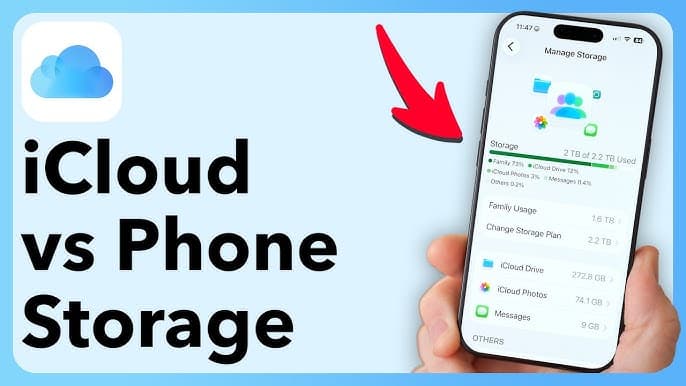
If your iPhone keeps saying “iPhone Storage Full” even though you've just paid for more iCloud storage, there's a good chance you're not doing anything wrong — you may simply be confusing two completely different types of storage. This is especially common among iPhone users with 64GB or 128GB models. You might buy additional iCloud storage expecting your iPhone to suddenly have more space. But that's not how iCloud works.
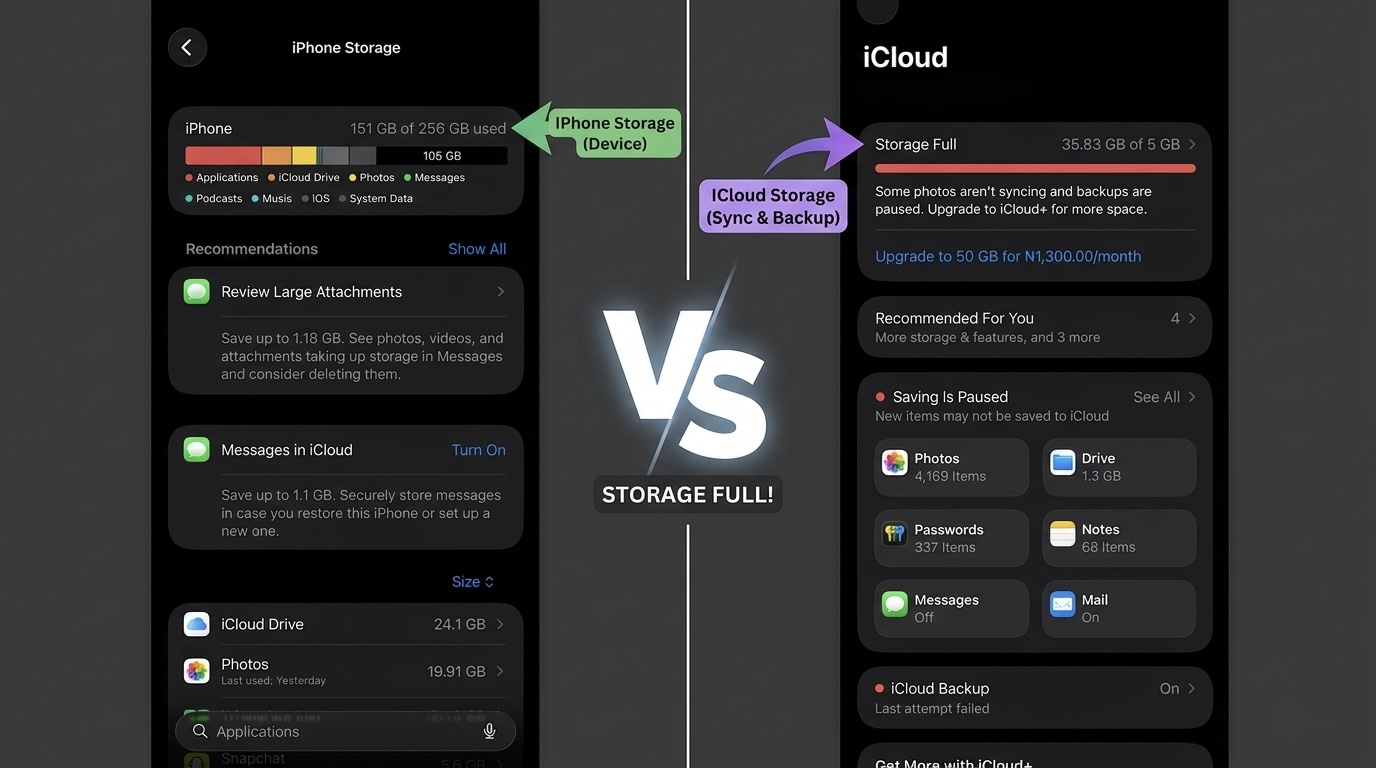
iCloud storage and your iPhone's physical storage are two separate things. Apple itself distinguishes between the storage built into your device and the cloud storage attached to your Apple Account.
Here's what you need to know.
iPhone Storage vs iCloud Storage: What's the Difference?
Think about it this way:
iPhone Storage = Your Phone's Physical Space
If you bought an iPhone with:
64GB
128GB
256GB
512GB
1TB
that storage is physically available on the device.
It is used by:
Apps
WhatsApp
Photos
Videos
Music
Downloads
iOS
App data
System files
You cannot increase the physical capacity of a 128GB iPhone by purchasing an iCloud subscription.
iCloud Storage = Cloud Space
iCloud is Apple's online storage service.
It can store or synchronize things such as:
Photos
Videos
Files
Notes
Backups
Other app data
Apple currently gives users 5GB of free iCloud storage, with larger plans available through iCloud+. So if you purchase additional iCloud storage, you're buying more cloud space — not more physical storage inside your iPhone.
So Why Doesn't Buying iCloud Free My iPhone?
This is where many users get confused.
Imagine you have:
128GB iPhone
and you've used:
125GB
Your phone is almost full.
You then purchase:
200GB iCloud+
You might expect:
128GB + 200GB = 328GB
That's not how it works.
Your iPhone is still a 128GB iPhone.
The additional 200GB exists in Apple's cloud.
But iCloud CAN Help Free Up iPhone Storage
Here's the important part.
While buying iCloud doesn't automatically increase your phone's capacity, iCloud Photos can help reduce how much space your photos and videos occupy on the device.
Apple provides a feature called:
Optimize iPhone Storage
When enabled, your full-resolution photos and videos can be stored in iCloud while smaller, space-saving versions remain on your iPhone when necessary. This can make a huge difference for people whose Photos library is consuming tens of gigabytes.
How to Turn On Optimize iPhone Storage
On your iPhone:
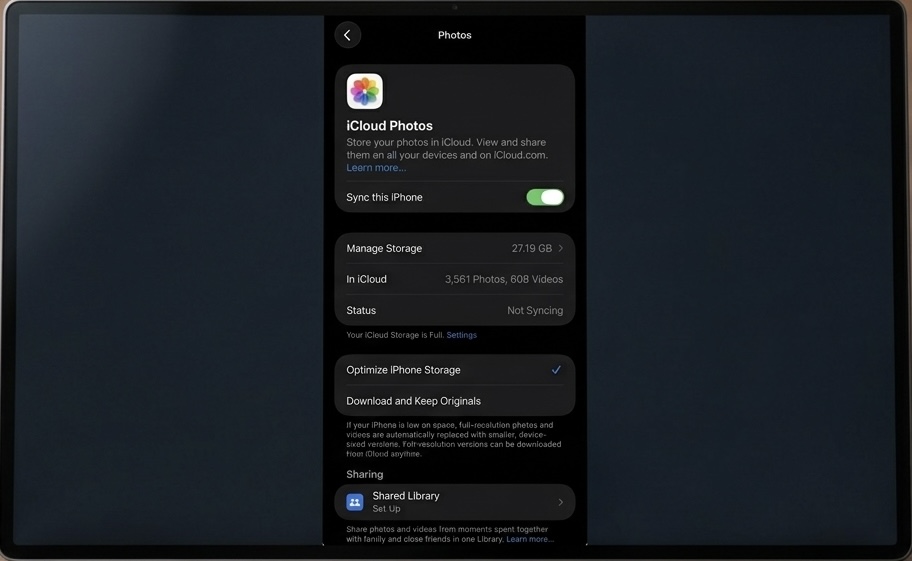
Settings → Your Name → iCloud → Photos
Make sure:
Sync this iPhone
is enabled.
Then select:
Optimize iPhone Storage
Your iPhone can then manage local photo storage while keeping the original, full-resolution versions in iCloud.
Don't expect the storage number to drop immediately. If you have thousands of photos and videos, your iPhone may need time to upload and synchronize the library. A reliable Wi-Fi connection can help.
Example: How This Helps a 64GB iPhone
Let's say your iPhone has:
64GB total storage
and your Photos library occupies:
25GB
You subscribe to iCloud+ and enable Optimize iPhone Storage.
Your iPhone doesn't suddenly become a 89GB phone. Instead, iCloud can store your original photos and videos while the iPhone retains space-saving versions locally when appropriate. The amount of space you actually recover will depend on your library and how much storage your device needs.
WhatsApp Is a Different Story
This is particularly important for Nigerian iPhone users.
If WhatsApp is using 15GB, 20GB or even 30GB, buying iCloud storage doesn't automatically remove those WhatsApp files from your iPhone.
Go to:
Settings → General → iPhone Storage
and check which applications are consuming the most space.
If WhatsApp is near the top, you need to manage WhatsApp's own storage rather than simply buying more iCloud.
This is also why an iPhone can have plenty of available iCloud storage but still display:
iPhone Storage Almost Full
What Happens If Your iCloud Storage Fills Up?
The opposite problem can also happen.
You might have plenty of physical space on your iPhone but run out of iCloud storage.
When iCloud becomes full, features such as iCloud Backup, iCloud Photos uploads and iCloud Drive synchronization can stop staying up to date until you free up space or upgrade your plan.
So you can have:
iPhone storage: 40GB free
iCloud storage: Full
Both are separate problems.
Is Paying for iCloud Worth It in Nigeria?
For many iPhone users, yes — particularly if you take lots of photos and videos.
It's also useful if you want a convenient cloud backup and synchronization system across Apple devices.
But don't buy iCloud+ simply because your iPhone says “Storage Full.”
First determine which storage is actually full.
Check iPhone storage:
Settings → General → iPhone Storage
Check iCloud storage:
Settings → Your Name → iCloud
Apple provides separate storage-management screens for both.
What Should You Delete When iPhone Storage Is Full?
Before spending money, check:
1. WhatsApp
Large videos and forwarded media can consume enormous amounts of space.
2. Photos and videos
Especially 4K video recordings.
3. Unused apps
iOS can also recommend offloading apps you don't frequently use.
4. Downloads
Check files downloaded through browsers and other apps.
5. Duplicate photos
iOS provides tools for identifying duplicate photos and videos.
6. Large attachments
Messages and other apps can accumulate large media files over time.
The Simple Rule to Remember
If you remember only one thing from this article, remember this:
iCloud storage is cloud space. iPhone storage is physical space.
Buying iCloud+ doesn't change a 64GB iPhone into a 128GB iPhone.
But if you use iCloud Photos correctly with Optimize iPhone Storage, it can help you reclaim significant local space, particularly if photos and videos are taking up most of your phone's storage.
Final Takeaway
Don't think of iCloud as an extra hard drive inside your iPhone. Think of it as an online storage and synchronization service that can work together with your iPhone's physical storage. If your phone is constantly showing “Storage Almost Full,” don't immediately subscribe to iCloud+.
First go to:
Settings → General → iPhone Storage
and find out what's actually consuming your space.
If it's mostly photos and videos, iCloud Photos + Optimize iPhone Storage can be a smart solution. If it's WhatsApp, games, apps or downloaded files, you'll need to manage those separately.
For users with older 64GB and 128GB iPhones, understanding this difference can save you from spending money on the wrong solution.
Advertisement
Responsive
Related Articles
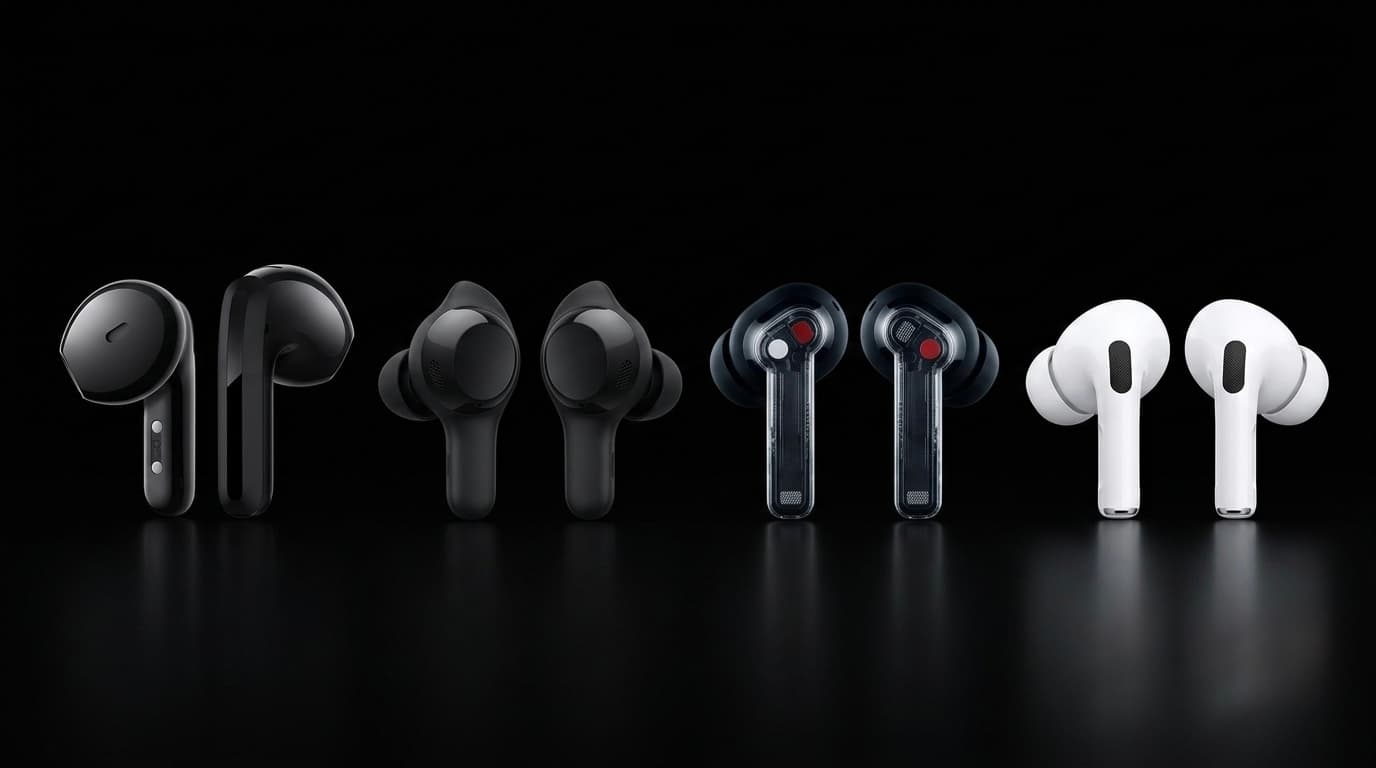
AirPods vs Wireless Earbuds in 2026: Which One Should You Buy in Nigeria?
Thinking of buying AirPods or another wireless earbud? Compare Apple AirPods with Samsung Galaxy Buds, Nothing Ear, Redmi Buds and more. Find out which offers the best value for Nigerians in 2026.
iPhone 17 Pro Max vs iPhone 18 Pro Max: Price & Specs Comparison in Nigeria
iPhone 17 Pro Max vs iPhone 18 Pro Max: compare price, display, cameras, battery, performance and features to see whether Nigerians should buy the 17 Pro Max or wait for the iPhone 18 Pro Max.

iPad vs Samsung Galaxy Tab: Which Tablet Should You Buy in Nigeria? 2026 Comparison Guide
Trying to choose between an Apple iPad and a Samsung Galaxy Tab? Compare prices in Naira, performance, battery life, display quality, and discover which tablet is best for students, professionals, artists, and gamers.
Upgrading from iPhone XR to iPhone 17 Pro Max? How to Spot a Fake Before You Pay
Upgrading from iPhone XR to iPhone 17 Pro Max? Learn how to spot a fake iPhone 17 Pro Max, check the model number, display, cameras, Face ID, USB-C and other red flags before buying.
What to Expect from the iPhone 18 Series in 2026 | Features, Release Date & Comparison
Apple's iPhone 18 series is expected to launch in September with improved AI, cameras, performance and battery life. Here's everything we know so far and whether Africans should upgrade.
WhatsApp Keeps Freezing on iPhone? Here's How to Fix It 2026
Is WhatsApp hanging, freezing, or crashing on your iPhone? Learn the most effective ways to fix slow WhatsApp performance, especially on 64GB and 128GB iPhones running low on storage.
iPhone Overheating in Nigeria? Causes, Fixes and When to Worry
Is your iPhone getting hot in Nigeria? Learn why your iPhone overheats, how hot weather, charging, gaming and apps contribute, and what to do before it becomes a serious problem.
Advertisement
728x90
Comments (0)
Leave a comment
Comments cannot be edited or deleted after posting. Please review your comment before submitting.
No comments yet. Be the first to share your thoughts!