
Windows Laptop Takes Too Long to Boot and Runs Slowly? Here’s How to Fix It
Is your Windows laptop taking forever to start or running slowly? Learn the common causes and practical ways to speed up your Windows 10 or Windows 11 PC.
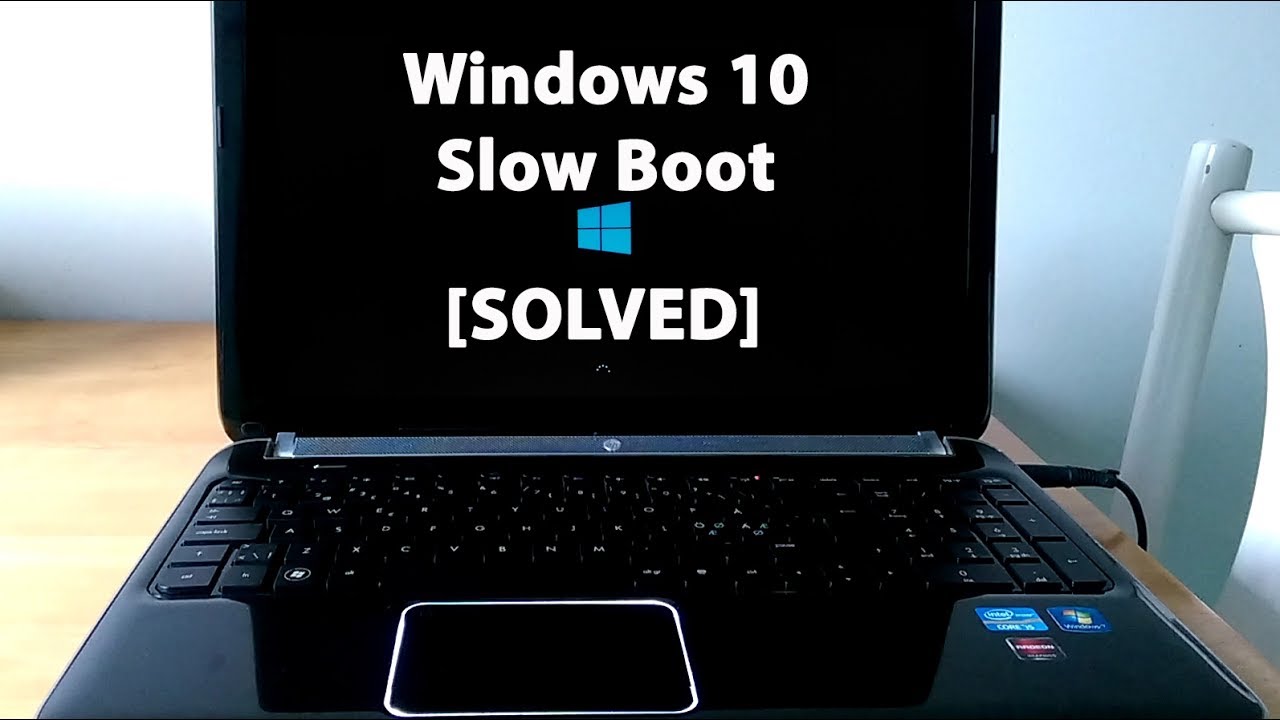
Windows Laptop Slow to Boot and Running Slowly
If your Windows laptop used to start quickly but now takes several minutes to boot and feels painfully slow afterward, you are not alone.
A slow Windows PC doesn't necessarily mean the laptop is finished. In many cases, too many startup programs, low storage, background applications, outdated software or aging hardware can be responsible. Microsoft also identifies long startup times, low storage and consistently high CPU, memory or disk usage as signs of performance problems.
Here are some things you can try before spending money on a new laptop.
1. Disable Unnecessary Startup Apps
This is one of the first things to check. Many applications automatically launch every time you turn on your laptop. You may not need Spotify, Teams, cloud storage services, launchers and other programs running immediately after Windows starts.
Press:
Ctrl + Shift + Esc → Startup apps
Look through the list and disable applications you don't need to start automatically. Microsoft notes that unnecessary startup applications can increase boot time and background activity. Don't disable something simply because you don't recognize it. If you're unsure about a program, search its name before disabling it.
2. Check How Much Storage You Have Left
A nearly full C: drive can make Windows feel sluggish and can also cause problems when installing updates.
Go to:
Settings → System → Storage
Remove temporary files and uninstall applications you no longer use. Microsoft recommends freeing up storage when a Windows PC is running low on space because insufficient storage can affect performance.
3. Find What's Eating Your RAM, CPU or Disk
Press:
Ctrl + Shift + Esc
Then open Task Manager.
Look at:
CPU
Memory
Disk
If one of them is constantly near 100%, identify the application responsible.
For example, if your laptop has 8GB of RAM and your browser, antivirus, Teams and several other applications are consuming most of it, Windows can become noticeably slower.
4. Remove Programs You Don't Use
Old applications can consume storage and sometimes run background services.
Go to:
Settings → Apps → Installed apps
Remove software you no longer need.
If a particular application is malfunctioning, Windows also provides Repair and Reset options for supported applications.
5. Restart Instead of Always Using Sleep
If you rarely restart your laptop, give it a proper restart occasionally. A restart can clear temporary system states and background processes that may have accumulated during long periods of use. It's a simple step, but worth trying before more complicated troubleshooting.
6. Check Windows Updates
An outdated Windows installation or problematic driver can sometimes contribute to performance problems.
Go to:
Settings → Windows Update
Install available updates and restart the computer. If you're still using Windows 10, there's another important consideration: Microsoft ended support for Windows 10 on October 14, 2025. If your laptop supports Windows 11, upgrading may be worth considering.
7. Your Hard Drive Could Be the Real Problem
This is particularly important for older laptops. If your laptop still uses a traditional HDD, Windows can feel extremely slow compared with a modern SSD.
You might notice:
Very long boot times
Programs taking a long time to open
File Explorer freezing temporarily
High disk usage
General sluggishness
If the laptop is otherwise in good condition, replacing an old HDD with an SSD can make a dramatic difference. Also pay attention to Windows storage-health warnings. Microsoft notes that certain storage problems can cause slowness, freezing and longer startup times.
8. Scan for Malware
If your laptop suddenly became much slower, especially after installing unfamiliar software, don't ignore the possibility of malware. Run a security scan using your trusted Windows security software and remove programs you don't recognize.
Avoid downloading random "PC booster" applications that promise to make your computer 10 times faster. Some can create more problems than they solve.
9. Try a Clean Boot if You Still Can't Find the Problem
If you've tried the basic fixes and the laptop is still slow, Windows has a Clean Boot option. A clean boot starts Windows with only essential drivers and startup programs, allowing you to determine whether another application or service is causing the slowdown.
This is more advanced, so don't randomly disable Microsoft services.
10. When Should You Consider Upgrading?
Sometimes the laptop simply has old hardware. If your computer has an old processor, limited RAM and a mechanical hard drive, software tweaks can only go so far. Microsoft itself notes that older hardware may not see significant improvement from performance troubleshooting.
Before replacing the entire laptop, however, check whether it can be upgraded with:
SSD + more RAM
For many older Windows laptops, those two upgrades can be much cheaper than buying a completely new computer.
The Bottom Line
If your Windows laptop is slow to boot and slow after startup, don't immediately assume the motherboard or processor is damaged.
Start with the simple checks:
Disable unnecessary startup apps → free up storage → check Task Manager → remove unused programs → update Windows → scan for malware → check your drive.
If you're still using an HDD, upgrading to an SSD should be one of the first hardware upgrades you investigate. And if CPU, memory or disk usage remains unusually high even when you're doing almost nothing, that's a sign that the problem deserves deeper troubleshooting rather than simply buying another "PC cleaner."
Related Articles
WhatsApp Keeps Freezing on iPhone? Here's How to Fix It 2026
Is WhatsApp hanging, freezing, or crashing on your iPhone? Learn the most effective ways to fix slow WhatsApp performance, especially on 64GB and 128GB iPhones running low on storage.
Windows Search Too Slow? This Free Tool Can Find Almost Any File in Seconds
Everything Windows, VoidTools Everything, Windows Search, Windows 11 tips, Windows 10 tips, file search, PC tips, productivity tools, free Windows software
How to Buy a Budget Laptop for Data Analysis and Web Development in Africa 2026 Guide
Looking for a cheap laptop to learn data analysis or web development in Africa? Here is exactly what to look for, recommended specs, Nigerian prices, used vs new advice and mistakes to avoid.

Gemini Becomes Google’s Fastest-Growing Product Ever as It Hits 1 Billion Users
Google Gemini has reached 1 billion monthly active users, becoming the fastest Google product to hit the milestone. Here’s what is driving Gemini’s growth and what comes next.

Download Firefox 153.0.4
Firefox is a fast, secure, and privacy-focused browser with tracking protection, cross-device sync, and a highly customizable interface.
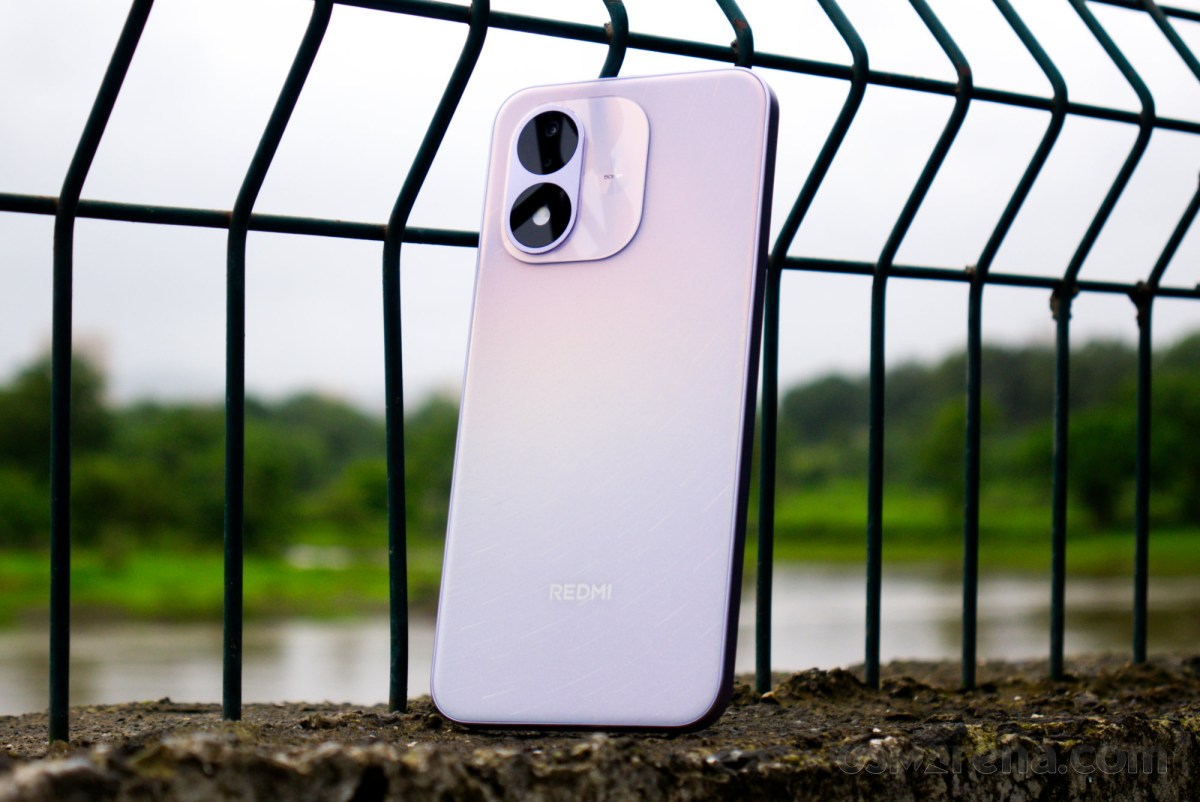
Xiaomi Redmi Note 17 5G Review: Price, Specs and Is It Worth Buying in Nigeria?
Xiaomi Redmi Note 17 5G review with Nigerian price, 7-inch 120Hz OLED display, Snapdragon 4 Gen 4, 8,000mAh battery, 50MP camera and 5G features.

Glo Unveils “Gloria” AI Assistant as Telecom Giant Marks 23 Years in Nigeria
Glo has unveiled Gloria, an AI-powered virtual assistant integrated into Glo Café. Here’s what the new AI tool means for Glo subscribers in Nigeria.
Comments (0)
Leave a comment
Comments cannot be edited or deleted after posting. Please review your comment before submitting.
No comments yet. Be the first to share your thoughts!