


How to Connect a SOCKS5 or Residential Proxy on iPhone Using Potatso for Free
Learn how to connect SOCKS5, HTTP and residential proxies to your iPhone using Potatso, including username, password, port and sticky proxy setup.
How to Use a SOCKS5 or Residential Proxy on Your iPhone
Using a proxy on a Windows PC is usually straightforward. Most proxy providers give you a hostname, port, username and password, and you can configure the connection through dedicated software. But what happens when you want to use the same type of SOCKS5 or residential proxy on an iPhone?
This can be particularly useful for legitimate activities such as remote-work environments, website testing, privacy-conscious browsing, research, or testing how a website or application behaves from a particular network location. The problem is that many proxy providers don't offer their own iPhone application. Fortunately, you don't necessarily need one. A third-party iOS proxy client called Potatso can import proxy credentials from supported providers and route your iPhone's traffic through the configured proxy.
What Is Potatso?
Potatso is an iOS networking tool that allows users to configure different types of proxy connections directly on an iPhone or iPad. According to its current App Store listing, Potatso supports:
SOCKS5
SOCKS
HTTP
HTTPS
Shadowsocks
ShadowsocksR
It also supports manually entering proxy credentials or importing supported proxy configurations through QR codes and URIs. The app is available for iPhone and iPad and currently uses a free-with-in-app-purchases model. Download Potatso from the Nigerian App Store
Why Would You Need a Proxy on an iPhone?
There are several legitimate reasons someone might want to configure a proxy on an iPhone.
For example:
Remote Work: Some remote-work environments require access through a specific network or IP address.
Website Testing: Developers and businesses can use proxies to test websites from different geographic locations.
Market Research: Researchers can test how websites display content in different regions.
Privacy: A proxy can act as an intermediary between your device and websites you access. However, a proxy should not be treated as a complete privacy or security solution.
Stable Residential Connections: Some residential proxy providers offer sticky sessions, allowing the same IP to remain assigned for a specified period rather than changing frequently.
This can be useful when a legitimate service requires session continuity.
Important: Always follow the terms of the website, app, freelance platform, survey provider or other service you're using. A proxy should not be used to evade account restrictions, identity verification, fraud controls or geographic eligibility requirements.
Why Potatso Is Useful
The biggest advantage is that you don't necessarily need a dedicated application from your proxy provider. You can purchase a compatible proxy from a provider and enter its credentials into Potatso.
For example, IPRoyal has published an official guide showing how its residential SOCKS5 proxies can be configured in Potatso. Other proxy providers also document Potatso configurations, including SOAX and Decodo.
What You Need Before Starting
Before opening Potatso, obtain the following information from your proxy provider:
Information | Example |
|---|---|
Proxy type | SOCKS5 |
Host | proxy.example.com or IP address |
Port | 12345 |
Username | your_username |
Password | your_password |
Your actual hostname, port and credentials will depend on your proxy provider.
Do not use the example values above.
If your provider uses IP whitelisting rather than username/password authentication, you'll need to configure the proxy according to that provider's instructions.
Step 1: Install Potatso
Open the App Store on your iPhone and search for Potatso. The current Potatso listing identifies the developer as Potatso Lab LTD and supports both iPhone and iPad. Get Potatso from the App Store
Make sure you're installing the current actively maintained Potatso app rather than the older paid Potatso 2 application. The App Store listing for Potatso 2 says that the paid version is no longer maintained.
Step 2: Add Your Proxy
After opening Potatso:
Tap Add a Proxy.
Select Add under the manual configuration option.
Choose the proxy type.
Enter your proxy server information.
For a SOCKS5 proxy, select:
Type → SOCKS5
Then enter:
Host: Your proxy hostname
Port: Your proxy port
Step 3: Enter Your Username and Password
If your proxy provider uses username/password authentication, select:
Authentication → Password
Then enter:
Username: Your proxy username
Password: Your proxy password
Then save the configuration.
The exact fields may differ slightly depending on the version of Potatso and the proxy provider. IPRoyal's current Potatso instructions similarly specify selecting SOCKS5, entering the provider's host and port, choosing password authentication, and entering the supplied username and password.
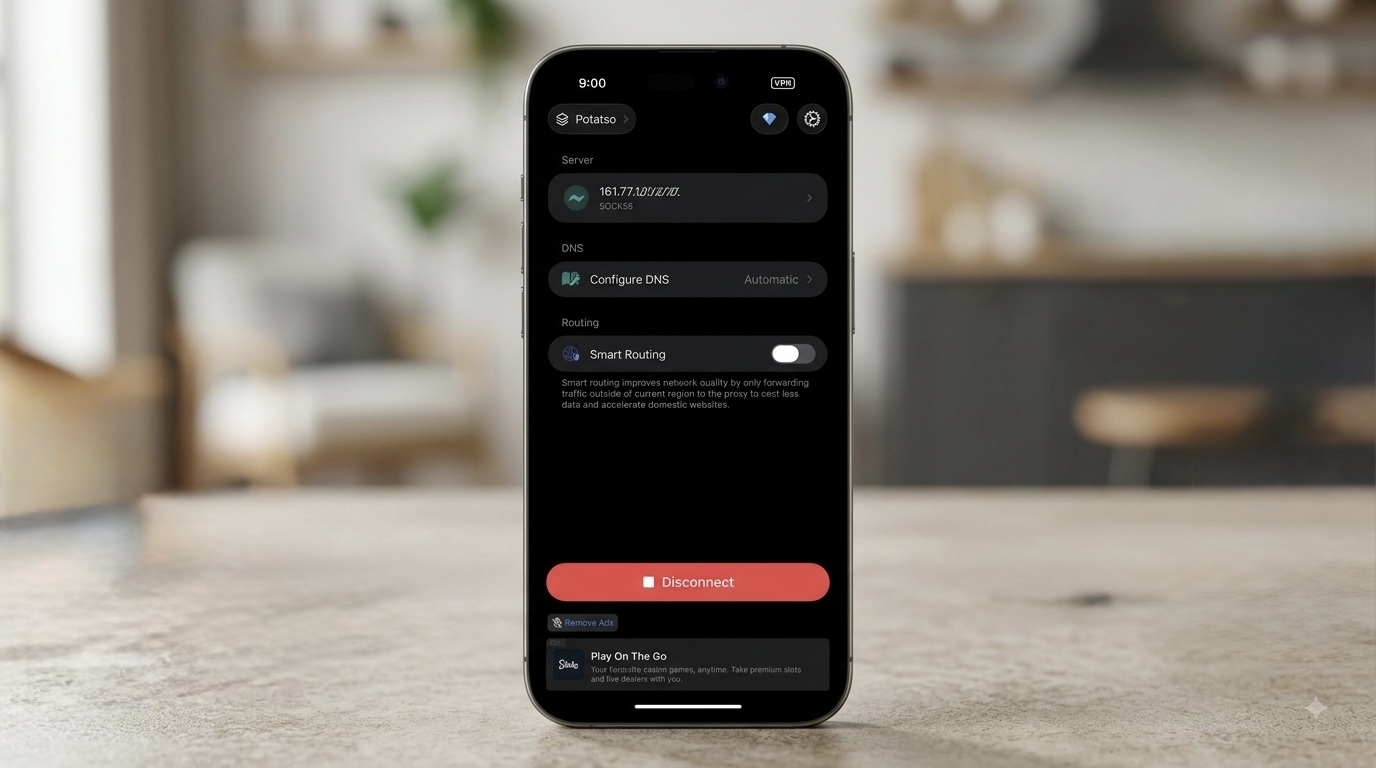
Step 4: Connect the Proxy
Once you've saved your proxy:
Return to the Potatso home screen.
Select your proxy configuration.
Tap the Connect button.
iOS will ask for permission to add a VPN configuration.
Tap Allow.
Authenticate with your iPhone passcode, Face ID or other requested security method.
Potatso uses an iOS VPN configuration to route traffic through the configured proxy. You should then see the VPN indicator in the iPhone status area.
How to Connect a Residential Proxy
The process is essentially the same if your provider gives you a residential SOCKS5 proxy. You normally need:
Residential proxy hostname
Port
Username
Password
SOCKS5 protocol
Some providers also allow you to select a country, city or session before generating your proxy credentials. The important distinction is that Potatso doesn't provide the residential IP itself. Instead:
Proxy Provider → Gives You Proxy → Potatso → iPhone
Potatso acts as the client that connects your iPhone to the proxy.
What Is a Sticky Residential Proxy?
A sticky residential proxy is designed to maintain the same residential IP for a specified session or period instead of rotating the IP after every request.
The actual duration depends on the provider. Some providers allow you to control the session duration or specify a session identifier. Decodo, for example, documents the use of session parameters for sticky SOCKS5 residential/mobile proxy connections.
What About Other Proxy Providers?
Potatso isn't tied to one particular proxy company. Its App Store description says users can configure proxies they've set up themselves or purchased from proxy providers like 9proxy or others.
Other providers also publish Potatso configuration instructions.
For example, Decodo documents HTTP, HTTPS and SOCKS5 configuration, including username/password authentication and IP-whitelisted connections. SOAX likewise documents configuring SOCKS5 or HTTP proxies through Potatso Lite. Therefore, the important thing isn't whether your proxy company has an iPhone application.
What matters is whether it provides a proxy protocol and authentication method that Potatso supports.
What If My Proxy Uses IP Whitelisting?
Not every proxy uses a username and password. Some providers authenticate you by whitelisting your IP address.
In that case, your setup may look more like:
Type: SOCKS5
Host: proxy.example.com
Port: 12345
Authentication: None
You first add your current IP address to the proxy provider's whitelist. Then Potatso connects without entering a username and password. SOAX, for example, documents an IP-whitelisting configuration where authentication is set to None after the user's IP has been authorized.
How to Check Whether the Proxy Is Working
After connecting, don't immediately assume that the proxy is active.
Verify it.
Open Safari and visit an IP-checking website. Compare the IP address before and after connecting. You should also check whether the displayed country or region corresponds to the proxy you selected.
Some proxy providers provide their own IP-checking tools; IPRoyal, for example, recommends checking the resulting IP after establishing the Potatso connection.
What If Potatso Doesn't Connect?
Here are some common problems.
1. Wrong Proxy Type
Make sure you selected SOCKS5 if your provider supplied a SOCKS5 endpoint.
Don't select HTTP simply because the proxy is a residential proxy.
Residential describes the type/source of the IP, while SOCKS5 describes the proxy protocol.
2. Incorrect Port
Double-check the port supplied by your proxy provider.
A wrong port can prevent the connection entirely.
3. Incorrect Username or Password
Proxy credentials are usually case-sensitive.
Copy and paste them carefully.
4. Your IP Has Not Been Whitelisted
If the provider uses IP authentication, make sure your current public IP has been added to the provider's whitelist.
5. Another VPN Is Active
Having another VPN or proxy configuration running can interfere with the connection.
Decodo specifically recommends ensuring that another VPN or proxy isn't active before configuring Potatso.
6. The Proxy Has Expired
Residential proxies are normally controlled by the provider.
Check whether:
Your account has sufficient balance.
The proxy session is still active.
The endpoint is valid.
The selected location is available.
The provider has placed any limits on the connection.
Frequently Asked Questions
Can I use SOCKS5 on an iPhone?
Yes. Potatso currently supports SOCKS and SOCKS5 proxy connections on iPhone and iPad.
Can Potatso use residential proxies?
Yes. Potatso can connect to compatible proxy services, including residential SOCKS5 proxies. IPRoyal, for example, provides an official Potatso setup guide for its residential proxies.
Do I need a proxy provider's iPhone app?
No. If the provider gives you compatible proxy credentials, you can manually configure them in Potatso.
Can I use a username and password?
Yes. Potatso supports password authentication for compatible proxy configurations.
Can I use a proxy without a password?
Yes, if your provider supports IP-based authentication/whitelisting. The exact setup depends on the provider.
Does Potatso provide a residential IP?
No. Potatso is the client used to connect to a proxy. You still need to obtain the proxy from a provider.
Does a sticky proxy remain the same forever?
No. A sticky session normally remains associated with an IP for a defined period or session. The exact duration depends on the provider.
Final Thoughts
If you've purchased a SOCKS5 or residential proxy and wondered how to use it on an iPhone, Potatso provides a relatively straightforward solution. You don't necessarily need your proxy provider to have its own iOS application. As long as the provider gives you a compatible proxy protocol and the required credentials, you can manually enter the details into Potatso.
The basic process is:
Get Proxy → Open Potatso → Add SOCKS5/HTTP → Enter Host & Port → Add Authentication → Save → Connect → Verify IP
The current Potatso app supports SOCKS5, HTTP/HTTPS and several other proxy protocols, and it works over both Wi-Fi and cellular connections. For legitimate remote-work, development, research and testing use cases, this makes Potatso a useful option for iPhone users who need more control over their network connection.
Just remember: a residential proxy is a networking tool, not a guarantee of anonymity or a way around a platform's rules. Always use it in accordance with the provider's and destination service's terms.
Related Articles
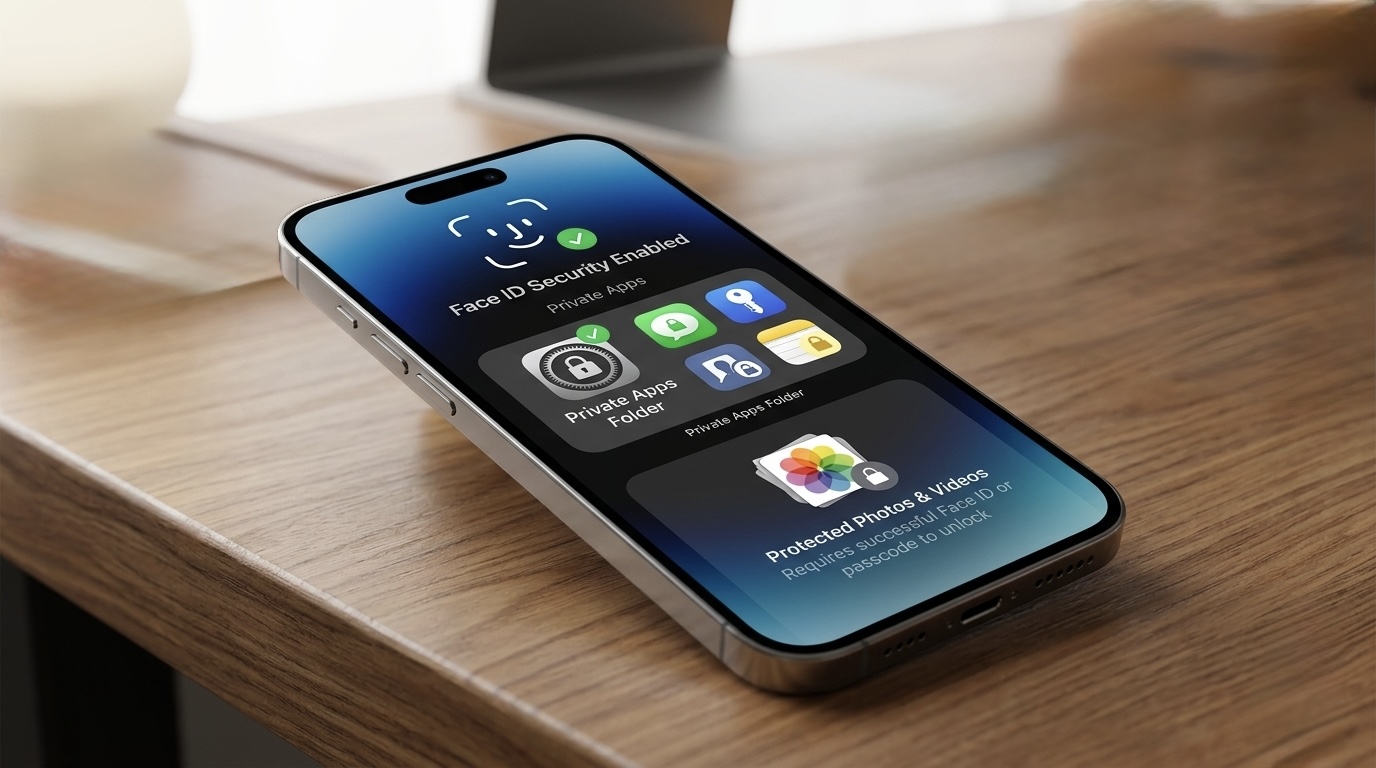
How to Improve Your iPhone Privacy in Nigeria: Hide Apps, Photos & More
Learn how to protect your iPhone privacy in Nigeria by hiding apps, locking photos, securing WhatsApp and banking apps, and enabling Stolen Device Protection.
WhatsApp Keeps Freezing on iPhone? Here's How to Fix It 2026
Is WhatsApp hanging, freezing, or crashing on your iPhone? Learn the most effective ways to fix slow WhatsApp performance, especially on 64GB and 128GB iPhones running low on storage.
Upgrading from iPhone XR to iPhone 17 Pro Max? How to Spot a Fake Before You Pay
Upgrading from iPhone XR to iPhone 17 Pro Max? Learn how to spot a fake iPhone 17 Pro Max, check the model number, display, cameras, Face ID, USB-C and other red flags before buying.

AirPods vs Wireless Earbuds in 2026: Which One Should You Buy in Nigeria?
Thinking of buying AirPods or another wireless earbud? Compare Apple AirPods with Samsung Galaxy Buds, Nothing Ear, Redmi Buds and more. Find out which offers the best value for Nigerians in 2026.
iCloud Storage vs iPhone Storage: Why Paying for iCloud Doesn't Automatically Free Your Phone
Confused about iCloud and iPhone storage? Learn the difference, why buying iCloud doesn't automatically free your iPhone, and how to use Optimize iPhone Storage correctly.
New AirPods Could Launch Next Month: Should Nigerians Wait Before Buying?
Apple's iCloud Private Relay May Not Fully Hide Your IP Address, Researchers Warn
Security researchers say Apple's iCloud Private Relay may expose a user's real IP address under certain conditions. Here's what the issue means, who's affected, and whether you should be worried.
Comments (0)
Leave a comment
Comments cannot be edited or deleted after posting. Please review your comment before submitting.
No comments yet. Be the first to share your thoughts!