


Mobile Data On But Not Browsing in Nigeria? Here's How to Fix It
Mobile data is on but your Android phone won't browse? Try these practical fixes for MTN, Airtel, Glo and 9mobile in Nigeria.

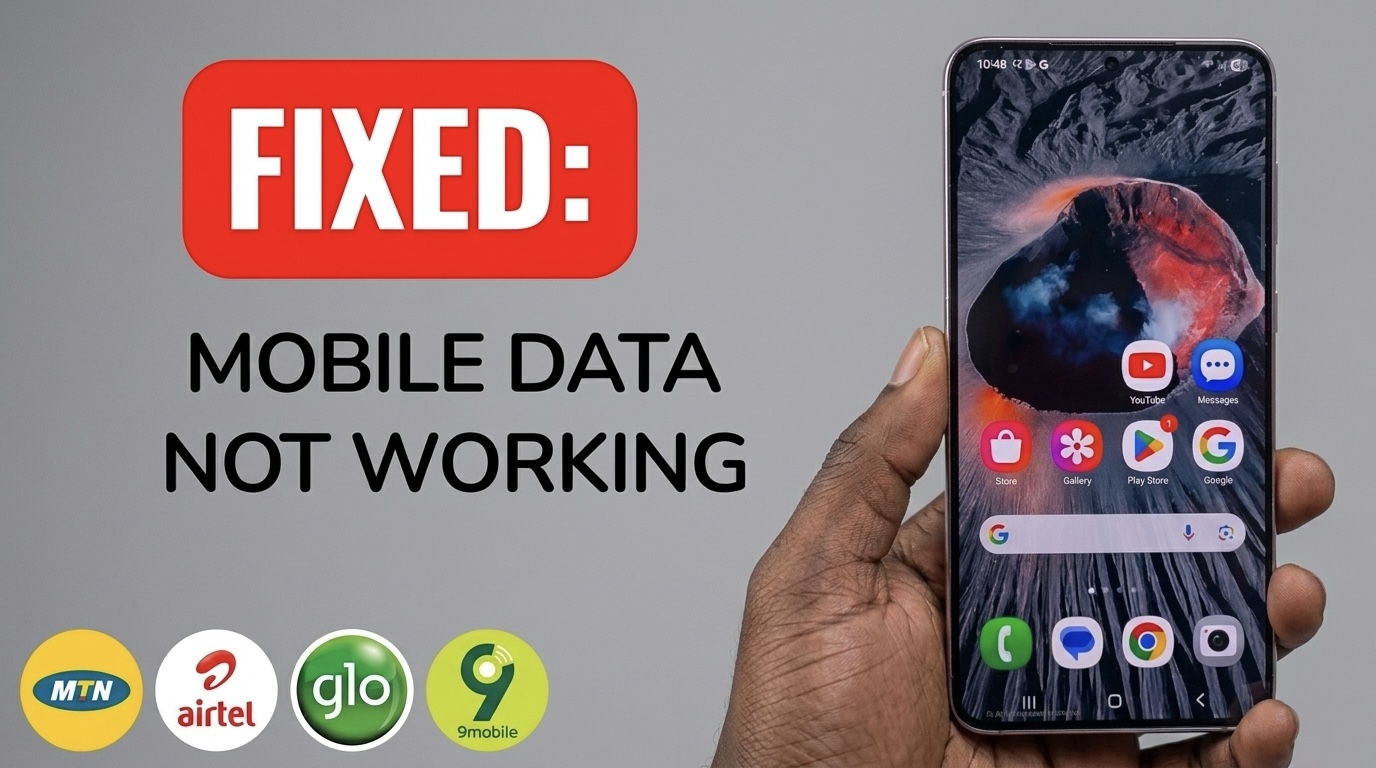
Your Data Is Active, But Nothing Is Loading?
One of the most frustrating Android problems is seeing 4G, LTE or 5G at the top of your phone while Chrome, WhatsApp, Instagram, Google Play Store and other apps refuse to connect to the internet. It can be even more confusing when you've just subscribed to a data bundle and your phone still says there's no internet.
The good news is that having a data icon doesn't necessarily mean your phone has a working internet connection. The problem can be caused by your network settings, APN configuration, SIM selection, weak coverage, VPN, Private DNS or a temporary network problem. Here are the fixes worth trying before assuming your data subscription is useless.
1. Turn Mobile Data Off and On Again
Start with the simplest solution.
Go to:
Settings → Network & Internet / Connections → Mobile Network
Turn Mobile Data OFF.
Wait approximately 10 seconds and turn it back on. Then open Chrome and try loading a website. Google also recommends toggling mobile data when troubleshooting Android connectivity problems.
2. Turn Airplane Mode On for 10 Seconds
This is one of the quickest ways to force your phone to reconnect to the mobile network.
Swipe down from the top of your screen.
Turn Airplane Mode ON.
Wait about 10 seconds.
Turn it OFF.
Wait for your network signal to return.
Try browsing again.
Google specifically recommends this procedure when Android mobile data isn't working.
3. Check Whether You Actually Have Data
Don't assume that seeing 4G or 5G means you still have an active bundle.
You could have:
Exhausted your data
An expired bundle
A restricted social-media bundle
A bonus bundle that doesn't cover the website you're trying to access
A subscription that hasn't activated correctly
For example, MTN states that once a data bundle is exhausted, internet access can be suspended until another bundle is purchased or the user opts into PAYG browsing. Check your network's official balance channel or app before changing complicated settings.
4. Check Your APN Settings
This is one of the most important fixes for Android users. APN means Access Point Name. It tells your phone how to connect to your network's mobile internet service. If the APN is incorrect, missing or corrupted, you may see network bars and even a 4G/5G icon while websites refuse to load.
Go to something similar to:
Settings → SIM/Mobile Network → Access Point Names
The exact menu varies between Samsung, Tecno, Infinix, Xiaomi, itel and other Android phones.
MTN Nigeria APN
For MTN Nigeria, the official internet APN is:
APN: web.gprs.mtnnigeria.net
MTN lists this as its smartphone internet APN and also says customers can request automatic settings by texting SETTINGS to 3888.
You normally don't need to enter a username or password.
Airtel Nigeria APN
Airtel Nigeria's official APN is:
APN: internet.ng.airtel.com
Airtel says username and password should be left blank. It also provides an automatic configuration option by sending Internet to 232.
Glo and 9mobile Users
For Glo and 9mobile users, don't randomly copy APN settings from an old blog. Network configurations can change, and different devices can also behave differently. Use the network's current official configuration or customer-support channel where possible.
If your phone previously worked and suddenly stopped after changing APN settings, restoring the network's default APN configuration can also be worth trying.
5. Reset Your APN
If you've changed your APN several times, you may actually have made the problem worse. Instead of entering dozens of settings from websites, try:
Access Point Names → ⋮ → Reset to default
Then restart your phone. After restarting, check whether mobile data works.
If it doesn't, enter the official APN supplied by your network provider.
6. Make Sure the Correct SIM Is Selected for Data
This is particularly important on dual-SIM Android phones. You may have:
SIM 1: MTN
SIM 2: Airtel
but accidentally have SIM 2 selected as the mobile-data SIM.
Go to:
Settings → SIMs / SIM Manager → Mobile Data
Select the SIM containing your active data bundle. This is easy to overlook after inserting a new SIM or changing SIM slots.
7. Check Your Network Mode
Your phone may have switched to a slower or incompatible network mode.
Look under:
Settings → Mobile Network → Preferred Network Type
Depending on your device, you may see options such as:
5G/4G/3G/2G Auto
4G/3G/2G
LTE/3G/2G
3G only
2G only
For normal use, an automatic 4G/5G option is generally preferable where supported.
Airtel's own guidance also explains that Android users can select LTE/4G LTE under network mode when troubleshooting 4G connectivity.
8. Temporarily Disable Your VPN
If you're using a VPN, proxy or privacy application, disconnect it temporarily. A badly configured VPN can prevent your phone from accessing websites even though mobile data itself is working.
After disabling it, open Chrome again.
If websites immediately start loading, you've identified the problem.
9. Check Private DNS
Android's Private DNS can occasionally cause connectivity problems when a custom DNS provider isn't responding correctly.
Search your Settings for:
Private DNS
You may see options such as:
Off
Automatic
Private DNS provider hostname
If you're currently using a custom DNS hostname, temporarily switch back to Automatic and test your connection.
This is particularly worth trying if:
WhatsApp works but browsers don't
Some websites load while others don't
The problem started after installing a privacy/networking application
10. Restart Your Android Phone
It sounds obvious, but don't skip it.
A restart can force Android to:
Reinitialize the mobile connection
Reconnect to the carrier
Reload network settings
Restart networking services
Clear temporary connection problems
Google lists restarting the device among its first recommended troubleshooting steps for Android connectivity issues.
11. Check Data Restrictions and Data Saver
Android can restrict how applications use mobile data.
Go to:
Settings → Network → Data Usage
Check:
Data Saver
and look at the individual application's mobile-data permissions. Make sure the browser or application you're testing isn't blocked from using mobile data.
12. Your Network Could Be Having an Outage
Sometimes there is simply nothing wrong with your phone. A network can experience:
Fibre cuts
Maintenance
Congestion
Tower problems
Regional outages
Backhaul problems
If several people around you using the same network can't browse, don't spend an hour changing your APN. Check the network's official support channels or contact customer service.
When You Should Contact Your Network
If you've tried the basic fixes and still can't browse, contact your provider if:
Your data balance is valid
The phone shows network signal
APN settings are correct
Airplane-mode reset didn't help
Another phone on the same network also can't browse
Your SIM suddenly stopped accessing data
Calls/SMS are also experiencing problems
If the issue follows your SIM to another phone, that's a strong indication that the problem may be related to the SIM, account or network rather than your Android device.
Frequently Asked Questions
Why does my Android show 4G but have no internet?
The 4G/LTE icon indicates that your phone is connected to the mobile network, but it doesn't guarantee that internet traffic is working. APN problems, network outages, exhausted data, VPNs and poor coverage can all cause this situation.
Why did my data stop working immediately after buying a bundle?
First check that the bundle was successfully activated and that your balance reflects the purchase. If the bundle is active, try toggling Airplane Mode and restarting your phone.
What is the MTN Nigeria APN?
MTN's official smartphone APN is web.gprs.mtnnigeria.net.
What is Airtel Nigeria's APN?
Airtel Nigeria lists internet.ng.airtel.com as its APN, with username and password left blank.
Should I reset my APN?
Yes, if you've previously modified the APN and mobile data stopped working. Resetting it to default and then entering the carrier's official configuration can help.
Final Thoughts
Having a 4G, LTE or 5G symbol doesn't always mean your internet connection is working. For Android users in Nigeria, the quickest troubleshooting path is usually:
Check data balance → Toggle mobile data → Airplane Mode → Check SIM → Check APN → Disable VPN/Private DNS → Restart → Reset network settings.
If you're using MTN or Airtel, it's particularly useful to verify the APN against the carrier's current official configuration rather than relying on an old APN list circulating online. And if multiple people using the same network around you are experiencing the same problem, your phone may be perfectly fine—the network may simply be having an issue.
Related Articles
WhatsApp Account Banned in Nigeria? How to Avoid a Ban and Get Your Account Back
WhatsApp banned your account in Nigeria? Learn why accounts get banned, how to avoid WhatsApp restrictions and what to do if your account is banned.
Google Play Store Not Downloading Apps in Nigeria? Here's How to Fix It
Google Play Store not downloading apps on your Android phone? Try these practical fixes for stuck downloads, pending apps, slow downloads and failed installations in Nigeria.
WhatsApp Keeps Freezing on iPhone? Here's How to Fix It 2026
Is WhatsApp hanging, freezing, or crashing on your iPhone? Learn the most effective ways to fix slow WhatsApp performance, especially on 64GB and 128GB iPhones running low on storage.
How to Connect a SOCKS5 or Residential Proxy on iPhone Using Potatso for Free
Learn how to connect SOCKS5, HTTP and residential proxies to your iPhone using Potatso, including username, password, port and sticky proxy setup.
How to Connect a SOCKS5 Proxy on Android Without a Provider App
Learn how to connect a SOCKS5 or HTTP proxy to Android using Tun2TAP, including proxy credentials, VPN setup and safe location testing.
How to Improve Your iPhone Privacy in Nigeria: Hide Apps, Photos & More
Learn how to protect your iPhone privacy in Nigeria by hiding apps, locking photos, securing WhatsApp and banking apps, and enabling Stolen Device Protection.
Windows Search Too Slow? This Free Tool Can Find Almost Any File in Seconds
Everything Windows, VoidTools Everything, Windows Search, Windows 11 tips, Windows 10 tips, file search, PC tips, productivity tools, free Windows software
Comments (0)
Leave a comment
Comments cannot be edited or deleted after posting. Please review your comment before submitting.
No comments yet. Be the first to share your thoughts!